Troubleshooting Azure Static Web Apps: 404 Errors & Disabled Subscriptions
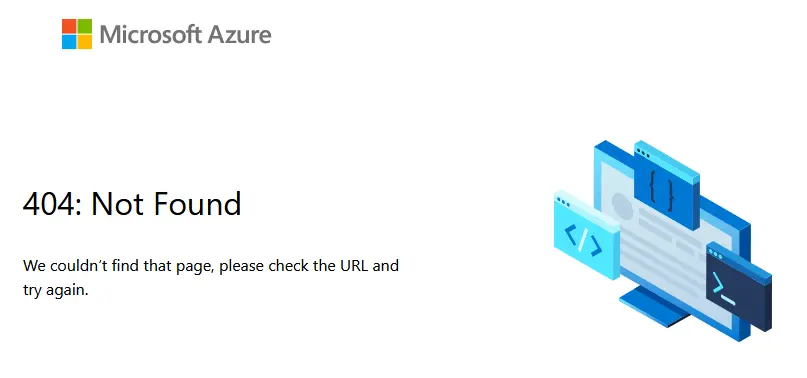
Today I encountered a persistent 404 Not Found error on my Azure Static Web App. The confusing part? My GitHub Actions deployment pipeline was green and reporting “Success” every time.
If you find yourself in a loop of successful deployments but a broken website, here is how to diagnose the “Silent Subscription Death” and fix it quickly.
The Symptoms
- Website is Down: Accessing the URL returns a standard 404 error.
- CI/CD Says Success: GitHub Actions shows the
Azure/static-web-apps-deploystep completed successfully. - Disconnect: The Azure Portal might show old deployment history or look “disconnected” from the latest commits.
The Root Cause: Disabled Subscription
The most critical lesson here is: GitHub Actions can successfully upload files even if the Azure resource is disabled.
The root cause was that my Azure Subscription had been disabled (likely due to the 30-day free trial expiring). Microsoft disables the public-facing site but doesn’t necessarily reject the deployment upload API calls immediately in a way that fails the action.
How to Diagnose (The “Check Azure First” Rule)
Before debugging your code or pipeline configuration, do this:
- Log in to the Azure Portal.
- Check your Subscription Status: Search for “Subscriptions” and check if the status is “Active” or “Disabled”.
- Check the Resource: Go to your Static Web App resource. If the subscription is disabled, you will likely see a banner or greyed-out options.
If the subscription is disabled, no amount of code changes will fix the 404.
The Fix: The “Clean Slate” Protocol
If your subscription is dead, you might first try to reactivate it in the Azure Portal (Home > Subscriptions), but this often fails if the trial has fully lapsed.
The most reliable path forward is:
- Add a new Subscription: Go to Home > Subscriptions > Add (e.g., Pay-As-You-Go).
- Create New Resource: Create a fresh Static Web App under this new active subscription.
1. Create New Resource
(Follow the steps above to ensure you are on an active subscription).
2. Update Deployment Token
Get the new deployment token from the Azure Portal (Overview > Manage deployment token) and update your GitHub Repository Secret (AZURE_STATIC_WEB_APPS_API_TOKEN).
3. Clean Up Auto-Generated Workflows (Crucial!)
When you link a GitHub repo to a new Azure Static Web App, Azure automatically commits a new workflow file to your repository (e.g., .github/workflows/azure-static-web-apps-<random-name>.yml).
Delete this file immediately. You want to use your existing, custom deploy.yml, not the default one Azure just created.
1
2
3
4
git pull origin main
rm .github/workflows/azure-static-web-apps-*.yml
git commit -m "chore: remove auto-generated azure workflow"
git push origin main
4. Configure skip_app_build
If you are building your site (e.g., React/Parcel) in a previous GitHub Action step and just uploading the dist folder, you must tell Azure to skip its own build process (Oryx). Otherwise, you might see errors like Could not detect the language from repo.
Update your deploy.yml:
1
2
3
4
5
6
- name: Deploy
  uses: azure/static-web-apps-deploy@v1
  with:
    # ... other configs ...
    app_location: dist
    skip_app_build: true  # <--- Add this!
Summary
If your Azure Static Web App returns 404 but deployments pass:
- Check if your Azure Subscription is disabled.
- If yes, recreate the resource on an active subscription.
- Update the Token in GitHub Secrets.
- Delete the auto-generated workflow file Azure pushes to your repo.
- Ensure
skip_app_build: trueis set if you upload pre-built assets.