From Meeting Notes to Merged Code: Automating Action Items with Claude Code
Our weekly meeting just ended. Gemini captured the notes automatically — attendees, topics discussed, decisions made, and a tidy list of action items at the bottom. I close the Google Meet tab, open my terminal, navigate to the project directory, and type /meeting-notes.
Within seconds, Claude Code fetches the latest meeting notes from Google Drive, parses out the “Suggested next steps” section, finds the four tasks assigned to me, and presents them as a checklist. I pick which ones to tackle. Then it starts working — reading the codebase, creating feature branches, implementing changes, running tests, and committing with conventional commit messages. Twenty minutes later, four tasks are done, each on its own branch, each with passing tests.
The problem this solves is simple but persistent: meeting action items get forgotten. Not because anyone is lazy, but because the gap between “task assigned in a meeting” and “task tracked in a system where work actually happens” is where things fall through. The notes live in Google Drive. The code lives in a git repository. The mental overhead of reading notes, extracting your tasks, context-switching into the codebase, and starting work — that friction is enough to delay things by days.
What if that gap were a single slash command?
This post documents how I built a three-layer system that does exactly that. It connects Google Drive meeting notes to Claude Code’s autonomous coding capabilities through a clean separation of concerns. I’ll walk through the architecture, show the actual code, and explain how to set it up for your own projects.
What This System Actually Does
Let me make this concrete before we get into the how.
I’m working on ncbr, an R package for nonclinical biostatistics. My team has weekly syncs where we discuss progress, review decisions, and assign follow-up tasks. Google Meet’s Gemini integration takes notes automatically and saves them to Google Drive.
When I type /meeting-notes in Claude Code, here is what happens:
- Claude Code reads the project’s configuration file (
.claude/meeting-notes.yaml) to learn the meeting’s calendar pattern, who I am, and how the project runs tests. - It calls my Google Drive MCP server to fetch the latest notes matching that pattern.
- It parses the notes for the “Suggested next steps” section and extracts tasks assigned to me.
- It presents a checklist and asks which tasks I want to implement.
- For each approved task, it creates a branch, implements the change, runs tests, and commits.
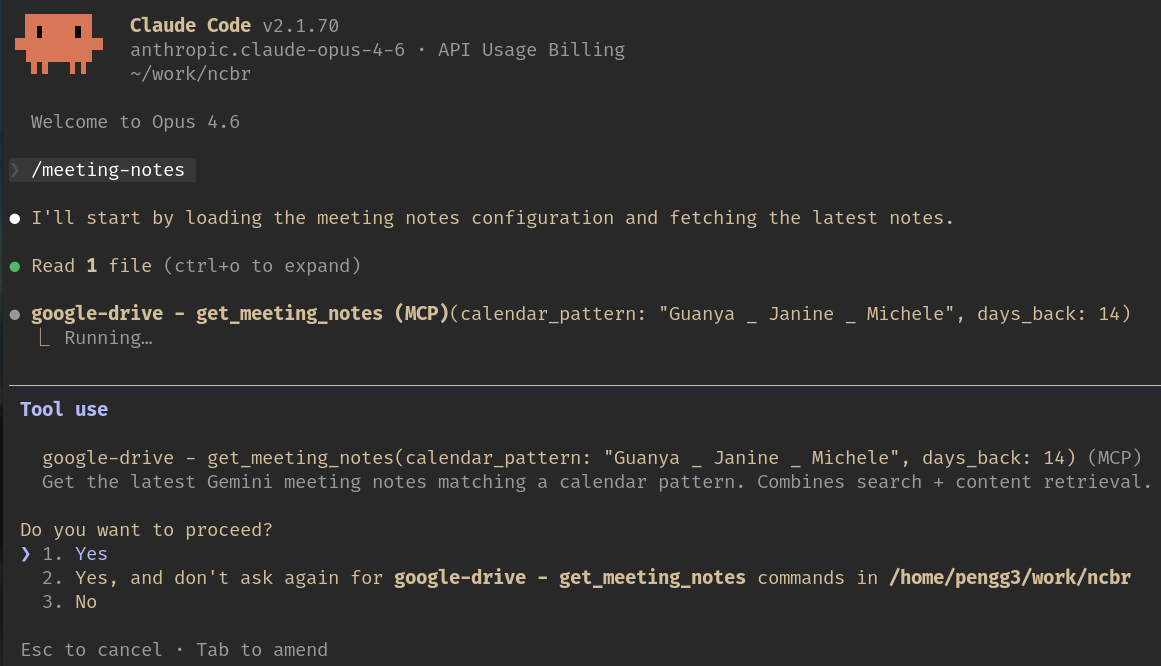 The
The /meeting-notes command triggers a call to the Google Drive MCP server, which authenticates via OAuth and fetches the latest Gemini notes.
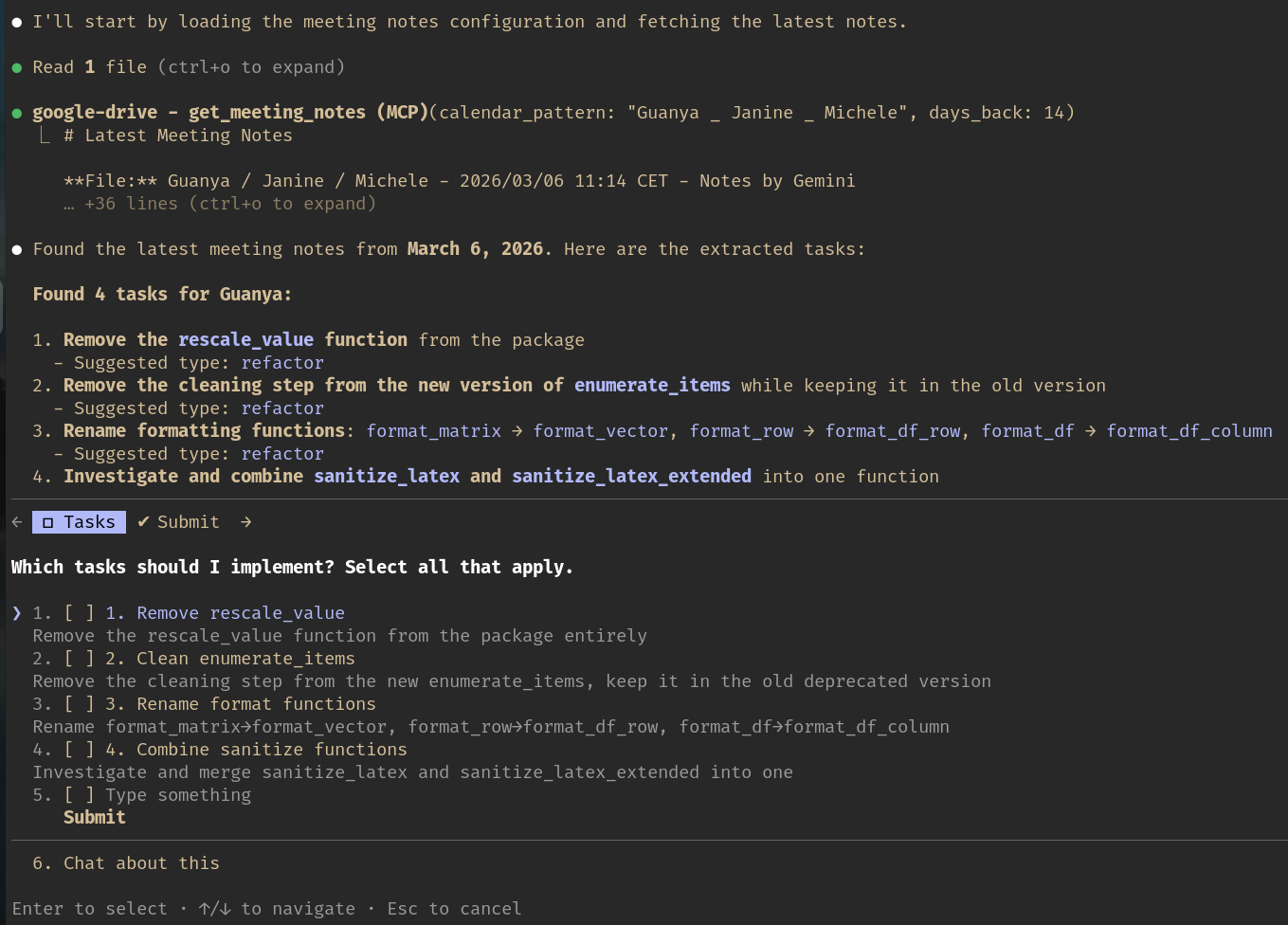 After parsing the notes, Claude Code presents extracted tasks as an interactive checklist. You choose which ones to implement.
The entire flow — from slash command to committed code — is hands-off except for that one confirmation step. And that confirmation step is intentional. You always want a human deciding what gets implemented.
The Architecture: Three Independent Layers
The system is built from three pieces that know nothing about each other:
 The three layers are independent: a plugin for capability, a recipe for workflow, and a settings file for customization.
Think of it as a plugin, a recipe, and a settings file:
- The MCP server (plugin) gives Claude Code the raw capability to read Google Drive. It knows nothing about meetings, tasks, or code.
- The Skill template (recipe) defines the workflow: fetch notes, extract tasks, confirm with user, implement. It knows nothing about Google Drive specifics or any particular project.
- The Project config (settings file) tells the skill which meeting to look for, whose tasks to extract, and how to run tests. It’s a simple YAML file in each project.
This separation means I can reuse the MCP server for any Google Drive task, reuse the skill template across all my projects, and customize behavior per-project with just a config file. Adding the meeting-notes workflow to a new project is a 30-line YAML file.
Layer 1: The MCP Server
What MCP Is
The Model Context Protocol (MCP) is an open standard for connecting AI assistants to external data sources and tools. Instead of hardcoding integrations, MCP provides a clean interface: a server exposes “tools” (functions with typed inputs and outputs), and the AI client discovers and calls them at runtime.
For Claude Code, MCP servers are registered in ~/.claude/.mcp.json. Here is the full registration for the Google Drive server:
1
2
3
4
5
6
7
8
{
  "mcpServers": {
    "google-drive": {
      "command": "~/.claude/mcp-servers/google-drive/.venv/bin/python",
      "args": ["~/.claude/mcp-servers/google-drive/server.py"]
    }
  }
}
That’s it. Claude Code starts the server as a subprocess, communicates over stdio, and discovers the available tools automatically. No API keys in the config — authentication is handled inside the server itself.
The Server Code
The server lives at ~/.claude/mcp-servers/google-drive/ and exposes three tools: search_drive_files, get_file_content, and get_meeting_notes. The last one is a convenience wrapper that combines search and content retrieval into a single call.
Here are the key parts. First, the imports and OAuth setup:
1
2
3
4
5
6
7
8
9
10
11
12
13
14
15
16
17
18
19
20
21
22
23
#!/usr/bin/env python3
"""MCP Server for Google Drive - Fetches Gemini meeting notes."""

import os
import json
from pathlib import Path
from datetime import datetime, timedelta

from mcp.server import Server
from mcp.server.stdio import stdio_server
from mcp.types import Tool, TextContent

from google.oauth2.credentials import Credentials
from google_auth_oauthlib.flow import InstalledAppFlow
from google.auth.transport.requests import Request
from googleapiclient.discovery import build

# OAuth scopes needed
SCOPES = ["https://www.googleapis.com/auth/drive.readonly"]

# Paths
CLIENT_SECRET_PATH = Path("~/path/to/client_secret.json").expanduser()
TOKEN_PATH = Path.home() / ".claude" / "mcp-servers" / "google-drive" / "token.json"
The drive.readonly scope is the minimum needed — we only read files, never modify them. The client secret file comes from Google Cloud Console (more on setup later), and the token is cached locally after the first OAuth flow.
The credential management handles three states: cached and valid, cached but expired (refresh), and no token at all (full OAuth flow):
1
2
3
4
5
6
7
8
9
10
11
12
13
14
15
16
17
18
19
20
21
def get_credentials() -> Credentials:
    """Get valid Google credentials, refreshing or re-authorizing as needed."""
    creds = None

    if TOKEN_PATH.exists():
        creds = Credentials.from_authorized_user_file(str(TOKEN_PATH), SCOPES)

    if not creds or not creds.valid:
        if creds and creds.expired and creds.refresh_token:
            creds.refresh(Request())
        else:
            flow = InstalledAppFlow.from_client_secrets_file(
                str(CLIENT_SECRET_PATH), SCOPES
            )
            creds = flow.run_local_server(port=0)

        TOKEN_PATH.parent.mkdir(parents=True, exist_ok=True)
        with open(TOKEN_PATH, "w") as token_file:
            token_file.write(creds.to_json())

    return creds
Next, the tool definitions. The list_tools() handler tells Claude Code what tools are available and what arguments they accept. Here is the get_meeting_notes tool definition:
1
2
3
4
5
6
7
8
9
10
11
12
13
14
15
16
17
18
19
20
21
22
23
24
25
26
27
28
29
30
server = Server("google-drive")

@server.list_tools()
async def list_tools() -> list[Tool]:
    """List available tools."""
    return [
        # ... search_drive_files and get_file_content omitted for brevity ...
        Tool(
            name="get_meeting_notes",
            description=(
                "Get the latest Gemini meeting notes matching a calendar pattern. "
                "Combines search + content retrieval."
            ),
            inputSchema={
                "type": "object",
                "properties": {
                    "calendar_pattern": {
                        "type": "string",
                        "description": "Pattern from calendar event title"
                    },
                    "days_back": {
                        "type": "integer",
                        "description": "Look back this many days (default: 14)",
                        "default": 14
                    }
                },
                "required": ["calendar_pattern"]
            }
        )
    ]
The actual implementation of get_meeting_notes searches for Google Drive files whose name contains both the calendar pattern and “Notes by Gemini,” then exports the most recent match as plain text:
1
2
3
4
5
6
7
8
9
10
11
12
13
14
15
16
17
18
19
20
21
22
23
24
25
26
27
28
29
30
31
32
33
34
35
36
37
38
39
40
41
42
43
44
45
46
47
48
async def get_meeting_notes(
    calendar_pattern: str,
    days_back: int = 14
) -> list[TextContent]:
    """Get latest meeting notes matching pattern."""
    try:
        service = get_drive_service()

        cutoff_date = (datetime.now() - timedelta(days=days_back)).isoformat() + "Z"
        query = (
            f"name contains '{calendar_pattern}' and "
            f"name contains 'Notes by Gemini' and "
            f"modifiedTime > '{cutoff_date}' and "
            f"trashed = false"
        )

        results = service.files().list(
            q=query,
            pageSize=1,
            fields="files(id, name, mimeType, modifiedTime)",
            orderBy="modifiedTime desc"
        ).execute()

        files = results.get("files", [])
        if not files:
            return [TextContent(
                type="text",
                text=f"No Gemini meeting notes found for '{calendar_pattern}' "
                     f"in the last {days_back} days."
            )]

        latest = files[0]
        content = service.files().export(
            fileId=latest["id"],
            mimeType="text/plain"
        ).execute()
        if isinstance(content, bytes):
            content = content.decode("utf-8")

        output = f"# Latest Meeting Notes\n\n"
        output += f"**File:** {latest['name']}\n"
        output += f"**Modified:** {latest['modifiedTime']}\n\n---\n\n"
        output += content

        return [TextContent(type="text", text=output)]

    except Exception as e:
        return [TextContent(type="text", text=f"Error: {str(e)}")]
Finally, the server entry point:
1
2
3
4
5
6
7
8
9
10
11
12
async def main():
    """Run the MCP server."""
    async with stdio_server() as (read_stream, write_stream):
        await server.run(
            read_stream,
            write_stream,
            server.create_initialization_options()
        )

if __name__ == "__main__":
    import asyncio
    asyncio.run(main())
Dependencies
The server’s pyproject.toml is minimal:
1
2
3
4
5
6
7
8
9
10
11
[project]
name = "google-drive-mcp"
version = "0.1.0"
description = "MCP server for fetching Google Drive files (Gemini meeting notes)"
requires-python = ">=3.11,<3.14"
dependencies = [
    "mcp>=1.0.0",
    "google-auth>=2.29.0",
    "google-auth-oauthlib>=1.2.0",
    "google-api-python-client>=2.120.0",
]
Four dependencies: the MCP SDK and Google’s three auth/API libraries. The server runs in its own .venv to keep dependencies isolated from everything else.
A Note on Security
The OAuth flow opens a browser window the first time you run it. After that, the refresh token is cached in token.json. A few things worth noting:
- The client secret is a Google Cloud OAuth credential, not a personal password. It identifies the application, not the user.
- The token is user-specific and should not be committed to version control. The
token.jsonfile stays in the MCP server directory, outside any git repo. - The scope is
drive.readonly— the server cannot modify, delete, or create files on your Drive.
Layer 2: The Skill Template
What Skills Are
Claude Code Skills are reusable Markdown files that define workflows. When you type /meeting-notes in Claude Code, it loads the corresponding SKILL.md file and follows its instructions. Think of them as prompt templates with superpowers: they can reference tools, execute shell commands, and accept arguments.
Skills live in ~/.claude/skills/<skill-name>/SKILL.md. Here is the full skill template for meeting notes:
1
2
3
4
5
6
7
8
9
10
11
12
13
14
15
16
17
18
19
20
21
22
23
24
25
26
27
28
29
30
31
32
33
34
35
36
37
38
39
40
41
42
43
44
45
46
47
48
49
50
51
52
53
54
55
56
57
58
59
60
61
62
63
64
65
66
67
68
69
70
71
72
73
74
75
76
77
78
---
name: meeting-notes
description: Process Gemini meeting notes using project-specific config
allow-tools: Bash, Read, Write, Edit, Glob, Grep, Agent, AskUserQuestion,
  TaskCreate, TaskUpdate, TaskList
---

# Meeting Notes Processor

## Project Configuration

!`cat .claude/meeting-notes.yaml 2>/dev/null || echo "ERROR: No
.claude/meeting-notes.yaml found in this project. Create one with
calendar_pattern, notes_folder, assignee, test_command, and
additional_instructions."`

## Instructions

Process meeting notes and implement assigned tasks:

### 1. Load Configuration

Read the project config from `.claude/meeting-notes.yaml`. Required fields:
- `calendar_pattern`: String to match in notes filename or Google Drive search
- `notes_folder`: Directory containing downloaded notes (fallback if MCP
  unavailable)
- `assignee`: Person to filter tasks for
- `test_command`: Command to run tests
- `branch_prefix`: Map of task types to branch prefixes
- `additional_instructions`: Project-specific guidance

### 2. Find Latest Notes

**Primary method (MCP):** If the `google-drive` MCP server is available,
use the `get_meeting_notes` tool:

    get_meeting_notes(calendar_pattern="<calendar_pattern>", days_back=14)

**Fallback (local files):** If MCP is not available, search `notes_folder`
for the most recent file matching `calendar_pattern`.

### 3. Extract Tasks

Read the notes content and look for the "Suggested next steps" section.
Extract tasks assigned to `assignee`.

### 4. Present Tasks for Confirmation

Show the extracted tasks to the user:

    Found X tasks for <assignee>:

    1. [ ] Task description
       Suggested type: feat/fix/refactor/docs

    2. [ ] Another task
       Suggested type: feat

Use AskUserQuestion to confirm which tasks to implement and their types.

### 5. Implement Approved Tasks

For each approved task:
1. Create a feature branch using `branch_prefix` + descriptive name
2. Implement the changes following project conventions
3. Run `test_command` to verify
4. Commit with conventional commit message

### 6. Apply Additional Instructions

Follow any `additional_instructions` from the config.

## Arguments

$ARGUMENTS

If arguments include "list" or "show", only show tasks without implementing.
If arguments include "focus on", filter to tasks matching that description.
How It Works
There are several design choices worth unpacking here.
The front matter declares which tools the skill is allowed to use. This is Claude Code’s permission system — the skill can read files, edit code, run shell commands, and ask you questions, but it cannot do anything outside this list.
The dynamic config loading is a clever trick. The line starting with ! followed by a backtick-enclosed command tells Claude Code to execute that shell command and inline its output into the prompt. So when the skill loads, it immediately reads the project’s YAML config and has all the context it needs. If the config file is missing, it shows an error message instead.
The six-step workflow is deliberately sequential and includes a human checkpoint at step 4. This is important: the system fetches and parses notes autonomously, but you decide what gets implemented. Claude Code will not start writing code until you confirm the task list. This is the right boundary for automation — you want the grunt work automated, not the decision-making.
The fallback mechanism in step 2 is practical. MCP servers can fail (OAuth tokens expire, network issues, etc.), so the skill can also read notes from a local folder. This means the workflow degrades gracefully instead of breaking completely.
The arguments handling at the bottom enables variations: /meeting-notes list shows tasks without implementing them, and /meeting-notes focus on documentation filters to a specific task. Small touches that make the skill more versatile.
Why Markdown?
Skills are Markdown files because Markdown is what Claude Code understands best. There is no special DSL to learn, no compilation step, no runtime. You write instructions in plain English with some structured formatting, and Claude Code follows them. This makes skills easy to write, easy to read, and easy to modify — which matters when you are iterating on a workflow.
Layer 3: Project Configuration
Each project that uses the meeting-notes skill needs one file: .claude/meeting-notes.yaml. Here is the configuration for ncbr:
1
2
3
4
5
6
7
8
9
10
11
12
13
14
15
16
17
18
19
20
21
22
23
24
25
26
27
28
29
# Meeting notes configuration for ncbr project

# Pattern to match in notes filename (from Google Calendar event title)
calendar_pattern: "Guanya _ Janine _ Michele"

# Folder where notes are downloaded
notes_folder: "dev"

# Filter tasks assigned to this person
assignee: "Guanya"

# Command to run tests
test_command: "R -e 'devtools::test()'"

# Branch naming prefixes
branch_prefix:
  feature: "feat/"
  fix: "fix/"
  refactor: "refactor/"
  docs: "docs/"

# Project-specific instructions (appended to base template)
additional_instructions: |
  - Follow ncbr package conventions in CLAUDE.md
  - Use roxygen2 documentation for R functions
  - Run devtools::document() after adding/modifying functions
  - Commit with: Co-Authored-By: Claude Opus 4.5 <noreply@anthropic.com>
  - Create separate branches for each task
  - Run devtools::test() before committing
Let me walk through each field:
calendar_pattern: This is the string that appears in the Google Calendar event title, which Gemini uses as the filename prefix. For my weekly sync with Janine and Michele, Gemini creates files like “Guanya _ Janine _ Michele - Notes by Gemini - 2026-03-06.”notes_folder: Where to look for locally downloaded notes as a fallback. Inncbr, I use thedev/folder which is in.Rbuildignoreand won’t be included in the R package build.assignee: My first name as it appears in the meeting notes. Gemini formats action items as “Guanya: Do the thing,” so this string is used to filter tasks.test_command: How to run tests for this project. For an R package, it’sdevtools::test(). For a Python project, it would bepytest. For a Node.js project,npm test.branch_prefix: Maps task types to git branch name prefixes, following the project’s branching convention.additional_instructions: Project-specific rules that the skill should follow. These get appended to the base workflow and ensure Claude Code follows each project’s conventions.
The beauty of this approach is that a different project would have a completely different config. A Python project might look like:
1
2
3
4
5
6
7
8
9
10
11
calendar_pattern: "DS Weekly Standup"
notes_folder: "notes"
assignee: "Guanya"
test_command: "uv run pytest"
branch_prefix:
  feature: "feature/"
  fix: "bugfix/"
additional_instructions: |
  - Follow PEP 8 style guidelines
  - Run ruff check before committing
  - Update CHANGELOG.md for user-facing changes
Same skill, same MCP server, different project behavior. That is the payoff of the three-layer separation.
Putting It All Together: A Real Example
Here is what a real session looks like with the ncbr project. I had just finished a weekly sync where we discussed adding new functions, updating documentation, and fixing a deprecation warning.
Step 1: Invoke the skill.
1
2
3
$ cd ~/work/ncbr
$ claude
> /meeting-notes
Claude Code loads the skill template, reads .claude/meeting-notes.yaml, and calls the MCP server with get_meeting_notes(calendar_pattern="Guanya _ Janine _ Michele").
Step 2: MCP fetches notes.
The Google Drive MCP server searches for the latest file matching “Guanya _ Janine _ Michele” and “Notes by Gemini,” exports it as plain text, and returns the content to Claude Code. This takes about two seconds.
Step 3: Task extraction.
Claude Code reads through the notes, finds the “Suggested next steps” section, and extracts four tasks assigned to me:
- Add
format_numeric()function for consistent number formatting - Update
_pkgdown.yamlto include recently added functions - Add unit tests for edge cases in
round_genentech() - Update the development guide vignette with the new deprecation workflow
It presents these as a checklist with suggested types (feat, docs, test, docs) and asks which ones to implement.
Step 4: Confirmation.
I review the list. All four look correct and reasonable. I confirm all of them.
Step 5: Autonomous implementation.
Claude Code gets to work. For each task, it:
- Creates a feature branch (e.g.,
feat/format-numeric) - Reads the relevant source files to understand existing patterns
- Implements the changes, following the conventions in
CLAUDE.md - Runs
devtools::test()to verify nothing is broken - Runs
devtools::document()to regenerate documentation - Commits with a conventional commit message and co-author line
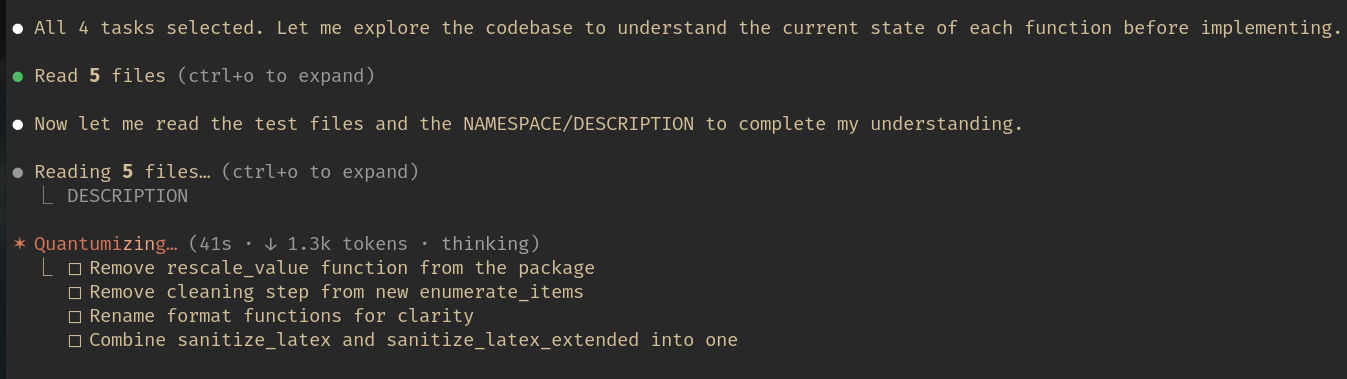 After confirmation, Claude Code works through each task — reading code, making changes, running tests, and committing.
The entire process takes about twenty minutes for four tasks. The human involvement is roughly one minute: reading the task list and confirming. Everything else is automated.
Setting This Up for Your Own Projects
If you want to build this for your own workflow, here are the steps.
1. Create a Google Cloud Project
Go to Google Cloud Console, create a project, enable the Google Drive API, and create OAuth 2.0 credentials (type: “Desktop application”). Download the client secret JSON file and save it somewhere safe outside any git repository.
2. Set Up the MCP Server
1
2
3
4
5
6
7
8
mkdir -p ~/.claude/mcp-servers/google-drive
cd ~/.claude/mcp-servers/google-drive

# Create the server files (server.py and pyproject.toml as shown above)

# Create virtual environment and install dependencies
uv venv
uv sync  # or: uv pip install -r requirements.txt
Update the CLIENT_SECRET_PATH in server.py to point to your downloaded client secret file.
3. Register the MCP Server
Create or edit ~/.claude/.mcp.json:
1
2
3
4
5
6
7
8
{
  "mcpServers": {
    "google-drive": {
      "command": "~/.claude/mcp-servers/google-drive/.venv/bin/python",
      "args": ["~/.claude/mcp-servers/google-drive/server.py"]
    }
  }
}
4. Create the Skill
1
2
mkdir -p ~/.claude/skills/meeting-notes
# Copy the SKILL.md content shown in Layer 2 above
5. Add Project Config
In each project where you want to use the skill:
1
2
mkdir -p .claude
# Create .claude/meeting-notes.yaml with your project's settings
6. First Run and OAuth
The first time you use /meeting-notes, the MCP server will open a browser window for Google OAuth authorization. After you grant access, the token is cached and subsequent runs are automatic.
File Locations Reference
| File | Location | Purpose |
|---|---|---|
| MCP config | ~/.claude/.mcp.json | Registers MCP servers with Claude Code |
| MCP server | ~/.claude/mcp-servers/google-drive/server.py | Google Drive access via OAuth |
| OAuth token | ~/.claude/mcp-servers/google-drive/token.json | Cached credentials (auto-generated) |
| Skill template | ~/.claude/skills/meeting-notes/SKILL.md | Workflow definition |
| Project config | <project>/.claude/meeting-notes.yaml | Per-project meeting settings |
Where This Could Go Next
The pattern here — capability + workflow + config — is more general than meeting notes. Once you see it, you start noticing other workflows that fit the same shape.
GitHub/GitLab MCP for code review. An MCP server that reads merge request comments and review threads. A skill that fetches the latest review, extracts requested changes, and implements them. The config would specify the project’s MR conventions, required reviewers, and CI commands.
Jira MCP for ticket implementation. An MCP server that reads Jira tickets assigned to you. A skill that fetches the highest-priority unstarted ticket, parses the acceptance criteria, and starts implementing. The config would map Jira project fields to branch naming conventions and test commands.
Chaining skills. What if /meeting-notes could hand off to /create-mr when implementation is done? The meeting notes skill creates branches and commits, and then a separate skill pushes the branches and creates merge requests with descriptions pulled from the original meeting notes. Each skill stays focused and composable.
Multi-source aggregation. A meta-skill that pulls tasks from meetings, Jira, GitHub issues, and Slack threads, deduplicates them, and presents a unified task list. The MCP servers are already independent — you just need a skill that calls multiple tools.
The key insight is that MCP servers are like USB devices: plug them in, and any software that speaks the protocol can use them. Skills are like shell scripts: composable, readable, and easy to modify. And project configs are just data. This separation makes the system easy to extend without rewriting anything.
Maintenance Quick Reference
This section is for future me (and anyone else maintaining a similar setup). When something breaks or needs updating, start here.
OAuth token expired or revoked:
- Delete
~/.claude/mcp-servers/google-drive/token.json - Run
/meeting-notes— it will trigger a fresh OAuth flow in the browser - If the browser does not open, check that the client secret file still exists at the configured path
Adding a new MCP server:
- Create a directory under
~/.claude/mcp-servers/<name>/ - Write the server following the MCP SDK patterns (see
server.pyabove) - Set up a
.venvwith dependencies - Add an entry to
~/.claude/.mcp.json - Restart Claude Code to pick up the new server
Modifying the skill workflow:
- Edit
~/.claude/skills/meeting-notes/SKILL.md - Changes take effect immediately on the next
/meeting-notesinvocation - No restart needed — skills are loaded fresh each time
Adding the workflow to a new project:
- Create
.claude/meeting-notes.yamlin the project root - Set
calendar_patternto match your meeting’s calendar event title - Set
assigneeto your name as it appears in Gemini’s notes - Set
test_commandto whatever runs your project’s test suite - Customize
additional_instructionsfor project-specific conventions
Debugging checklist when things go wrong:
- MCP server not starting: Check the Python path in
.mcp.jsonpoints to the correct.venv/bin/python - No notes found: Verify
calendar_patternmatches the Google Calendar event title exactly (Gemini uses underscores between names) - Wrong tasks extracted: Check
assigneematches the name format in the meeting notes - Tests failing after implementation: Review
additional_instructions— project conventions may need updating - Permission denied on tool call: Check the skill’s
allow-toolsfront matter includes all needed tools
Final Thoughts
What I find most satisfying about this system is not the automation itself — it is the separation of concerns. The MCP server does not know about meetings. The skill does not know about Google Drive. The config does not know about code. Each layer has one job, and they compose cleanly.
This matters because it makes the system maintainable. When Google changes their API, I update one Python file. When I want to change the workflow (say, adding a step that creates merge requests), I edit one Markdown file. When I start a new project, I write one YAML file. Nothing else changes.
The human-in-the-loop step is equally important. I’ve seen too many automation systems that try to remove human judgment entirely. The right approach is to automate the tedious parts — finding notes, parsing tasks, writing boilerplate code, running tests — while keeping the human in charge of decisions. You should always be the one deciding what gets built.
The gap between “task assigned in a meeting” and “code merged in a repository” used to be filled with context-switching, copy-pasting, and procrastination. Now it is a slash command. That is a gap worth closing.